Questions
Answers before you install
Compatibility, audio, notes, links, and common limitations.
Which browsers are supported?
The desktop release supports current Google Chrome, Microsoft Edge, and compatible Chromium browsers on a computer. The signed mobile beta supports Firefox 142 or newer on Android. Chrome, Edge, and Brave on Android cannot use this package. The iPhone/iPad Safari build is still waiting for TestFlight. Desktop Firefox and Safari packages are not offered.
Is StudyNav an official JW.org extension?
No. It is an independent open-source project and is not produced, endorsed, or maintained by Jehovah’s Witnesses.
Is the publication search powered by AI?
No. It is for cases where you already know a publication code or document number, and opens the regular JW.org/WOL search for it. It does not search by the meaning of the text.
How do I select verses 3 through 5?
Select verse 3, choose Select several, then select verse 5. Copy uses all three verses, Link creates one direct address, and Download audio saves the range as one WAV file. Shift-click still works as a keyboard shortcut.
What does “clean text” remove?
Verse numbers, reference letters, footnote links, and StudyNav labels or buttons. It keeps the actual words of the selected verse or paragraph.
How much text can I highlight?
Up to 10,000 characters in one saved highlight. This is enough for a long excerpt while preventing an accidental whole-page selection from becoming one oversized note.
Why do some options show no change on the homepage?
Image buttons, scrolling navigation, the wider column, and table styling need an article, image, or table to change. On WOL, wider text and clearer tables work in articles; its header is already fixed by the site.
Where is the Transcript button?
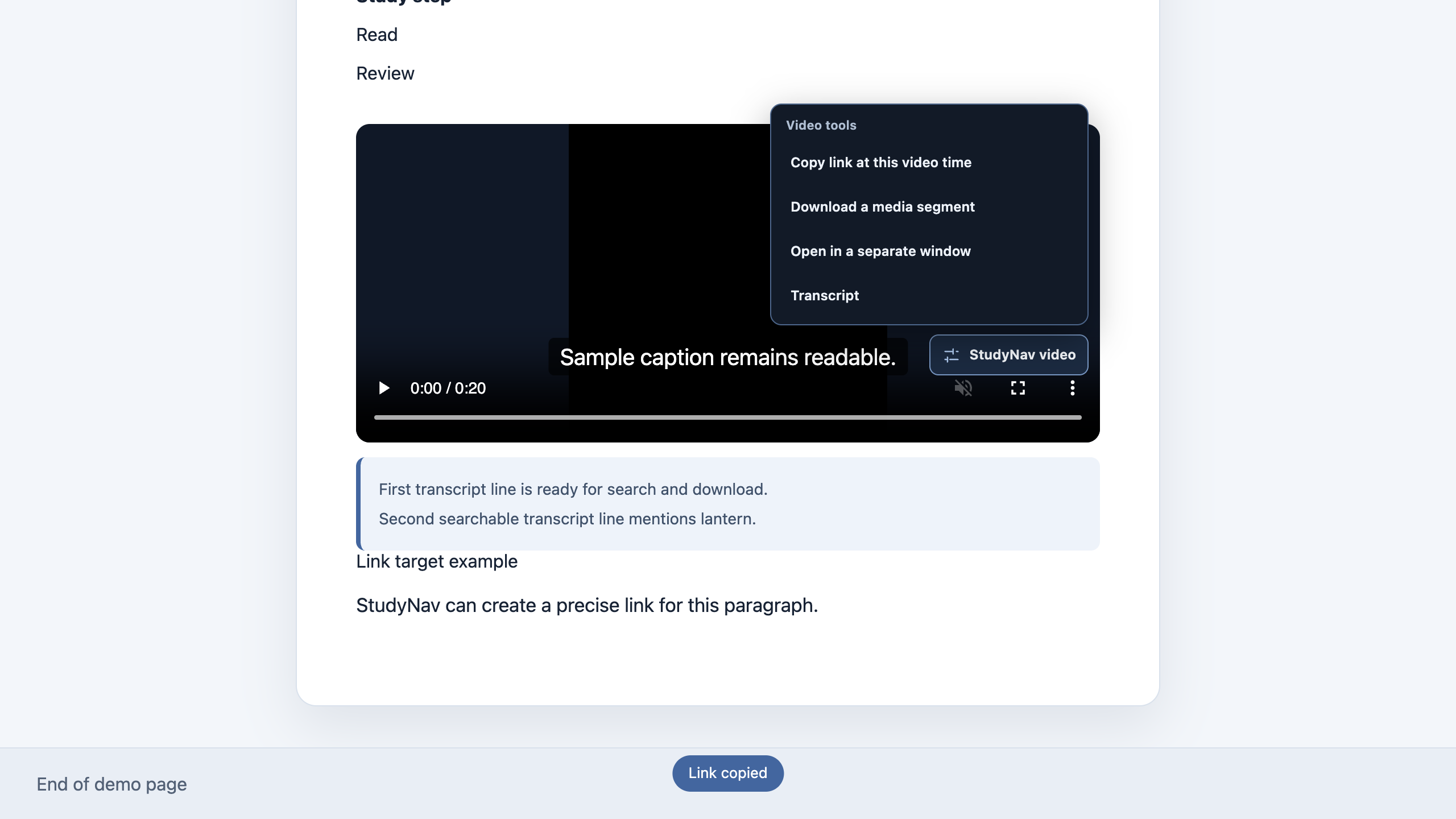
Open the StudyNav menu beside a video. Transcript now remains visible there. It searches and downloads captions supplied by the page, or tells you that none are available. StudyNav does not send audio to a transcription service.
Does verse audio work in Russian and Ukrainian?
Yes. On supported English, Russian, and Ukrainian Bible chapter pages, you can download one verse or several consecutive verses. If the chapter media has not loaded yet, start Play Audio once and try again.
Why are clips saved as WAV and WebM?
The browser can create these formats without sending media to a server. The current limits are five minutes for audio and three minutes for video; the guard prevents a tab from using excessive memory, and video is recorded locally in real time.
How do I change or delete a note?
Click its colored highlight or use Edit in the right notes rail. The same rail contains Save, Delete, and Cancel. While typing tags, comma or Enter turns the finished word into a chip.
Why was Download article images still on in my profile?
Older saved settings can outlive new defaults. New installs start with it off. Press Reset recommended defaults in the popup to apply the current defaults to an existing profile.
Can notes synchronize between devices?
There is no remote sync. Export the Study library JSON from one browser profile and import it into another. Import merges valid records and does not delete existing ones.
How do I update StudyNav without losing my notes?
The Chrome Web Store version updates automatically. If you are moving from an older manually loaded ZIP, export a JSON backup from its Study library, install the Store version, and import the JSON into that copy. Check the notes before disabling the old extension; each copy has separate local storage.
Can I use StudyNav on a smartphone?
On Android, yes—as a Mozilla-signed Firefox beta. Download the XPI from the mobile beta section, tap the Firefox logo five times under Settings → About Firefox, then use Install Extension from File. The public download and Android 16 emulator workflows are verified; a physical-phone install through this link is still being checked. iPhone and iPad are not available yet because the Safari build still needs TestFlight.
Does the Android beta update automatically?
No. This first self-distributed beta is intentionally manual. When a newer signed version is released, download its XPI from this guide and install it from file again. Export your Study library JSON before an update and confirm your notes afterward.